Registra: From ID Card to Ready-to-Use Document, on Mobile and Web
A screen-by-screen guide to Registra: reading verified data from an ID card or passport chip, applying web-managed templates, creating PDFs on-device, and approving web sign-in with biometrics.
What problem does Registra solve?
When preparing a lease agreement, guest registration form, or customer admission form, the same identification information has to be entered over and over again. This not only wastes time but also increases the risk of typos in fields such as document number, date of birth, or first and last name. Registra is a document management app that populates pre-designed document templates with verified information read from an ID card or passport chip; it generates a PDF on your phone and prepares it for sharing or printing.
The product combines two work environments: company managers manage shared document templates and team permissions via the web dashboard; field users perform NFC scans, select a template, and generate the document on their device using the Android or iOS app. The scanner does not read the chip on the ID card directly. Contact with the card, MRZ capture, and NFC steps all take place on the phone.
What you’ll learn in this article
- How Registra divides tasks among the mobile app, web panel, and server,
- how Face ID or fingerprint authentication works after the initial card verification,
- how block-based document templates are prepared,
- the step-by-step user flow from the ID chip to PDF generation,
- applicable scenarios for real estate, hospitality, and multi-employee businesses,
- the product’s privacy limitations and current development status.
High-level architecture: prepare on the web, complete on the phone
Registra’s core workflow consists of four steps:
- Prepare the template: An authorized user creates the document structure in the web panel or mobile editor.
- Verify identity and permission: The phone captures MRZ information with the camera and then reads the chip via NFC. The server verifies both the chip evidence and the account’s current usage permission over HTTPS.
- Populate fields:
{{adSoyad}},{{belgeNo}},{{dogumTarihi}}Variables such as these are filled in with the read identity data. - Generate the document: The PDF is prepared on the phone; the user previews, shares, or prints it.
This distinction is particularly important: while the web panel manages the corporate structure and template lifecycle, the NFC process—which must be physically close to the ID card—remains on the mobile device.
Login experience: card once, biometrics for subsequent logins
First mobile login
During the first login, the app reads the MRZ with the camera and then prompts the user to hold the card near the phone’s NFC antenna. The login evidence read from the chip is sent to the server. Instead of trusting one generic ‘identity verified’ flag, the server performs the following cryptographic checks separately.
1. DS key and DSC: was the SOD signed by the document-issuing chain?
DS (Document Signer) refers to the key used by the document issuer to sign chip data. The DSC (Document Signer Certificate) carries the corresponding public key and certificate information. Registra first validates the signed-attribute digest in the SOD and then verifies the SOD signature with the DSC public key. A missing DSC or an invalid SOD signature causes the card login to be rejected.
2. CSCA: does the DSC chain to a trusted country authority?
The CSCA (Country Signing Certification Authority) is the country-level trust anchor for document signing. The server verifies the DSC signature against the relevant CSCA certificate in its configured trust store. This means that a mathematically valid SOD signature is not sufficient on its own; the document signer must connect to a country-signing authority trusted by the server. This description does not claim complete global CSCA coverage or a full CRL/revocation implementation; trust depends on the CSCA set configured on the server.
3. Passive Authentication: does the data read from the chip match the signed data?
Passive Authentication (PA) checks both the SOD signature and data-group integrity. In Registra’s card-login evidence, DG1 and DG15 are required. If DG11 or DG14 is supplied, its digest is also compared with the corresponding value in the SOD. Any mismatch causes rejection. DG2 is not included in this login evidence, so the system does not claim that every chip data group or the portrait is verified on the server during login. The portrait used in a document template is handled by the on-device document-generation flow.
4. Active Authentication: is the physical chip present now?
Active Authentication (AA) is a challenge–response check that prevents copied chip files from being sufficient on their own. For every card login, the server creates a random, one-time 8-byte challenge. The chip responds using the non-exportable private key corresponding to the public key in DG15. The server verifies that response with the DG15 public key; RSA- and ECDSA-based AA responses are supported.
AA is not optional in this Registra login flow. An invalid challenge length, DG15 key, or AA signature causes the evidence to be rejected. PA shows that the data read matches the signed data, while AA shows that the physical chip holding the corresponding private key responded to the fresh challenge. The chip’s private key is never extracted from the card.
Immediately after a successful first login, the phone’s own biometric window opens. The device key is stored using Face ID or Touch ID on an iPhone, or strong biometric/fingerprint authentication on an Android device. It is not a requirement of the standard workflow for the user to specify a “passkey name.”
Subsequent mobile logins
On a registered phone, the user unlocks the biometric lock screen with a single touch. This subsequent login does not rerun the card’s PA and AA checks. The device key registered in the Secure Enclave or Android Keystore signs a new, one-time server challenge, and the server verifies the signature with the registered public key. Face ID or fingerprint approval authorizes local use of the device key; the biometric template is not sent to the server. When the app goes into the background, the account is locked, and the session token is held in memory rather than being written to persistent storage.
Re-authentication with the card may be required in the event of a new phone, a factory reset, device unregistration, or if the biometric key becomes invalid. If strong biometrics cannot be used, the option to continue with the card is preserved.
Usage permission: identity verification does not create an account
Registra does not provide public company or account creation. When an unknown person successfully verifies an identity chip, the system creates a usage application instead of opening a company account. Only the product owner, acting through a separate system-administrator account, can use the web dashboard’s Usage Permissions screen to create a company or attach an application to an existing company and role.
Being a company owner or company administrator does not grant this product-level approval authority. A person added from the company’s Users screen must still verify their identity and wait for system-administrator approval. If usage permission is revoked, the user’s active mobile and web sessions, registered biometric device keys, and legacy browser passkeys are invalidated.
Web Login via QR Code
The default login screen of the web panel displays both a QR code and a four-digit verification code. The user scans the QR code with their phone, verifies that the code on the computer matches the one on their phone, and confirms with Face ID or a fingerprint. The panel in the browser then opens automatically. On a registered phone, there is no need to scan the ID card again for this process.
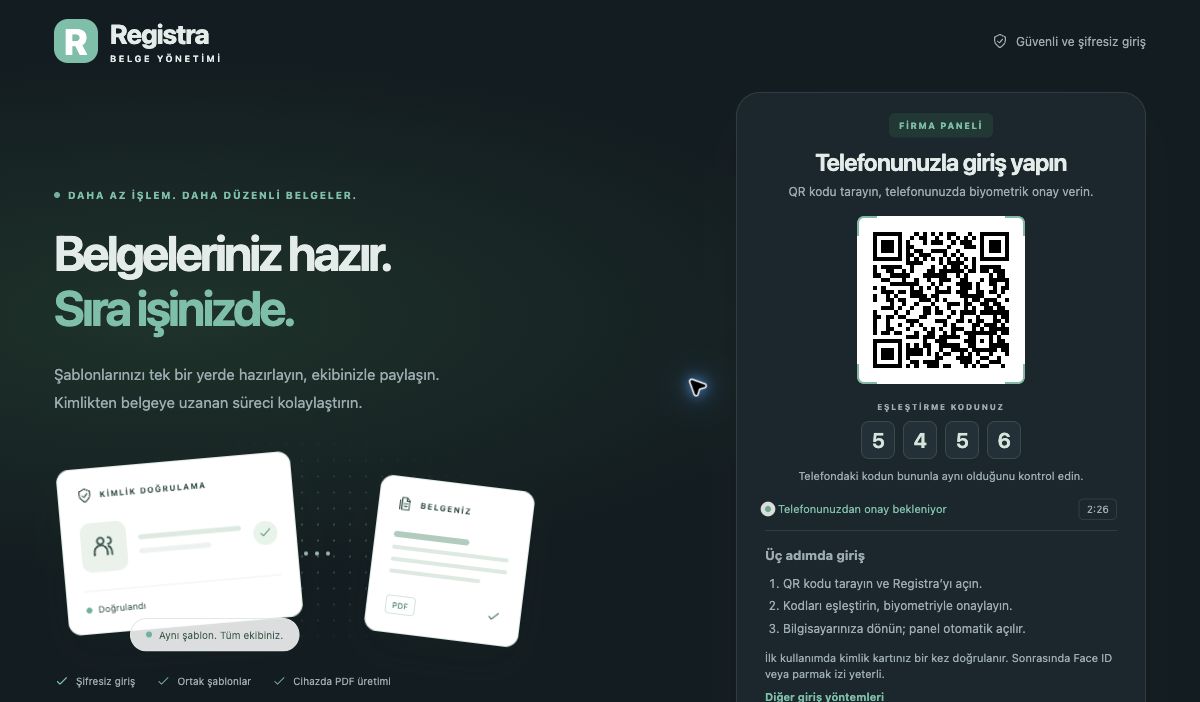
Current web login screen: The QR code, verification code, and biometric authentication on the phone are used together. The QR code shown in the image is for a short-lived sample session.
The QR code alone is not a password or PIN. The user’s comparison of the four-digit code reduces the risk of authorizing an incorrect computer session. While the standard “Lock/Log Out” action protects the next biometric login, the “Remove Account from This Device” action deletes the device registration with explicit confirmation. Users can view and remove their registered phones from the company settings in the web panel; mobile and web sessions associated with the removed device are also terminated.
Web Panel: The Hub for Shared Document Management
Templates screen
The Templates screen serves as the company’s shared document library. Users can search for templates, start from scratch, or create a copy of a template from the sample gallery—such as the Residential Lease Agreement or Guest Registration Form. Workflows for editing, copying, sharing via a link, and tracking the version history of an existing template are also consolidated in this same area.
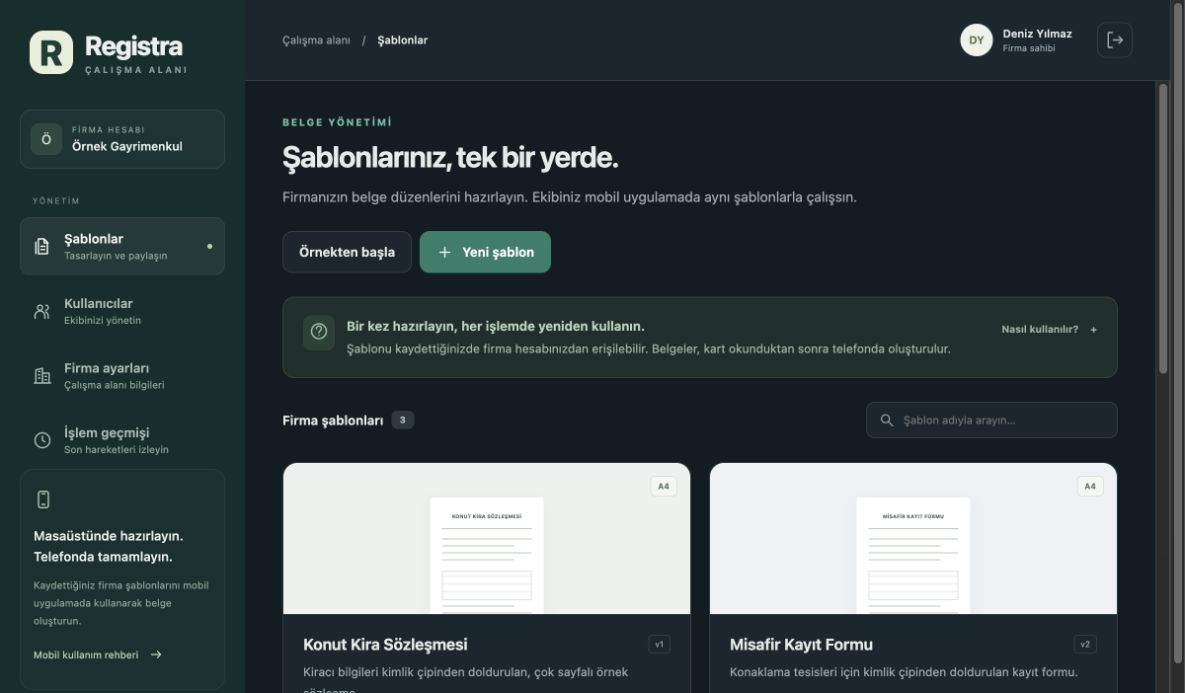
The Templates screen with sample company data. The same company templates can also be used in the mobile app.
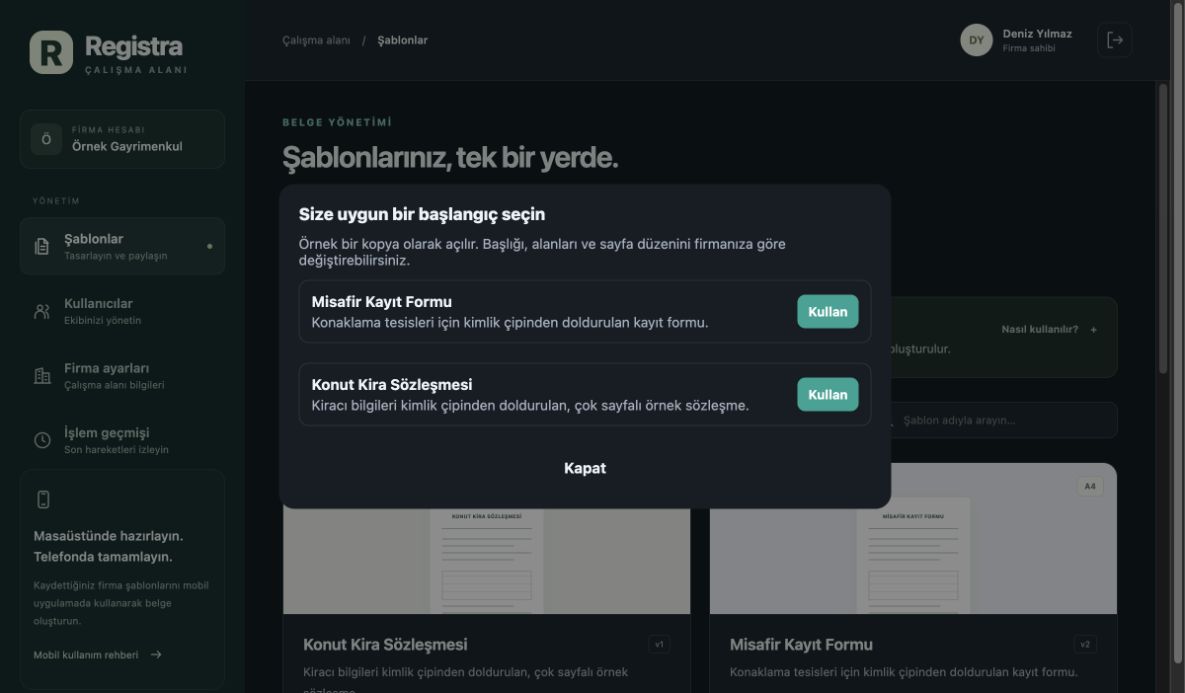
The “Start from a Sample” window makes it easy to copy a standard document and customize it for your company.
A flowing document model, not a free canvas
The Registra editor does not use a free-form pixel canvas. The document consists of blocks that flow from top to bottom within the header, body, and footer regions. Supported building blocks include:
- heading and paragraph,
- field table in label-value format,
- photo read from a chip,
- checkbox,
- signature lines,
- separator, space, and page break.
The page size can be selected as A4, A5, or Letter; orientation, margins, font, point size, line spacing, and block spacing can be adjusted. Long body content wraps to the next page; the header and footer are repeated. This approach aims to produce print-ready and predictable documents rather than dealing with pixel coordinates across different screen sizes.
How do variable fields work?
Variables added to text and table cells are resolved with identity data at the time the document is generated. For example:
{
  "type": "fieldTable",
  "rows": [
    { "label": "Ad Soyad", "value": "{{adSoyadKucuk}}" },
    { "label": "Belge No", "value": "{{belgeNo}}" },
    { "label": "Doğum Tarihi", "value": "{{dogumTarihi}}" }
  ],
  "bordered": true
}
In the template engine, person fields, document fields, and system fields are cataloged separately. In addition to fields such as first name, last name, place of birth, nationality, document number, and expiration date, system values such as today’s date, page number, and total number of pages can also be used. Fields not included in the form—such as rent amount, property information, or special notes—must be entered separately by the user and verified before the document is finalized.
Mobile app: Step-by-step guide from ID to PDF
1. Create Document and Scan ID
On the “Create Document” screen, the user follows the camera and NFC prompts. The camera provides MRZ access information; the NFC scan retrieves ID data and verification evidence. In the current Android and iOS release, card reading and PDF generation require the native layer to check usage permission with the server over HTTPS, so these protected actions require an internet connection. The results screen indicates whether the document has been verified. Sensitive information can be masked to prevent ID fields from being unnecessarily exposed on the screen.
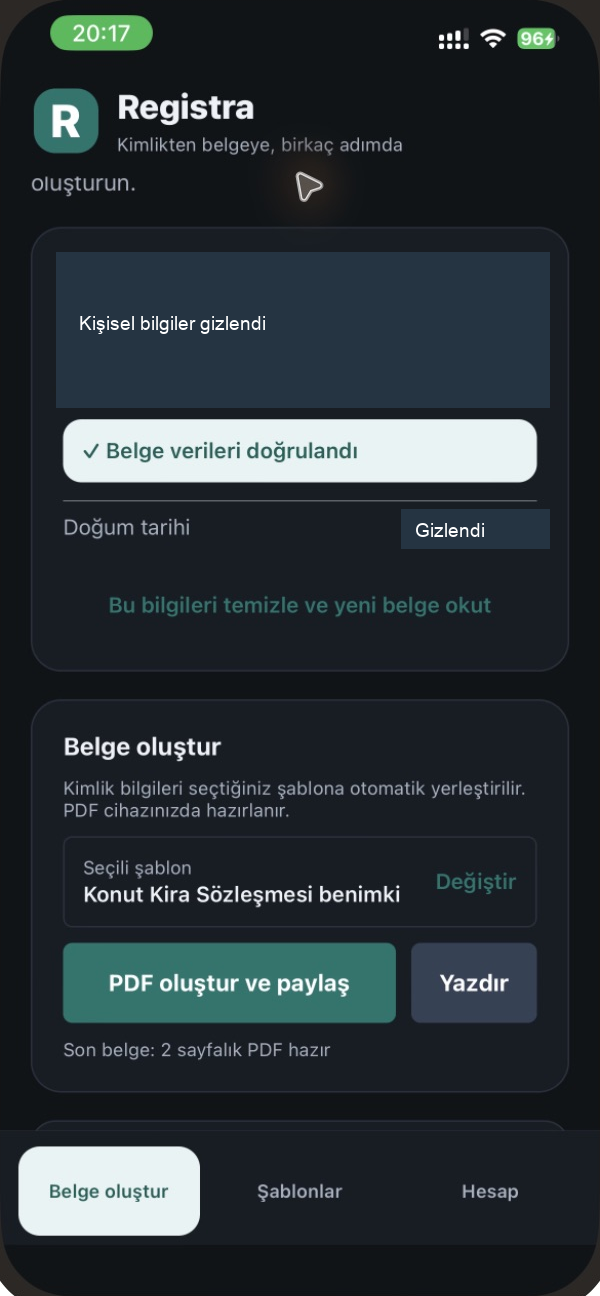
Representative mobile results screen: personal fields are hidden, while the document verification status and selected template are visible.
2. Select a Template
The “Mobile Templates” tab lists both sample and company templates together. The user can import a template shared via a link, copy and edit an existing template, or create a new template.
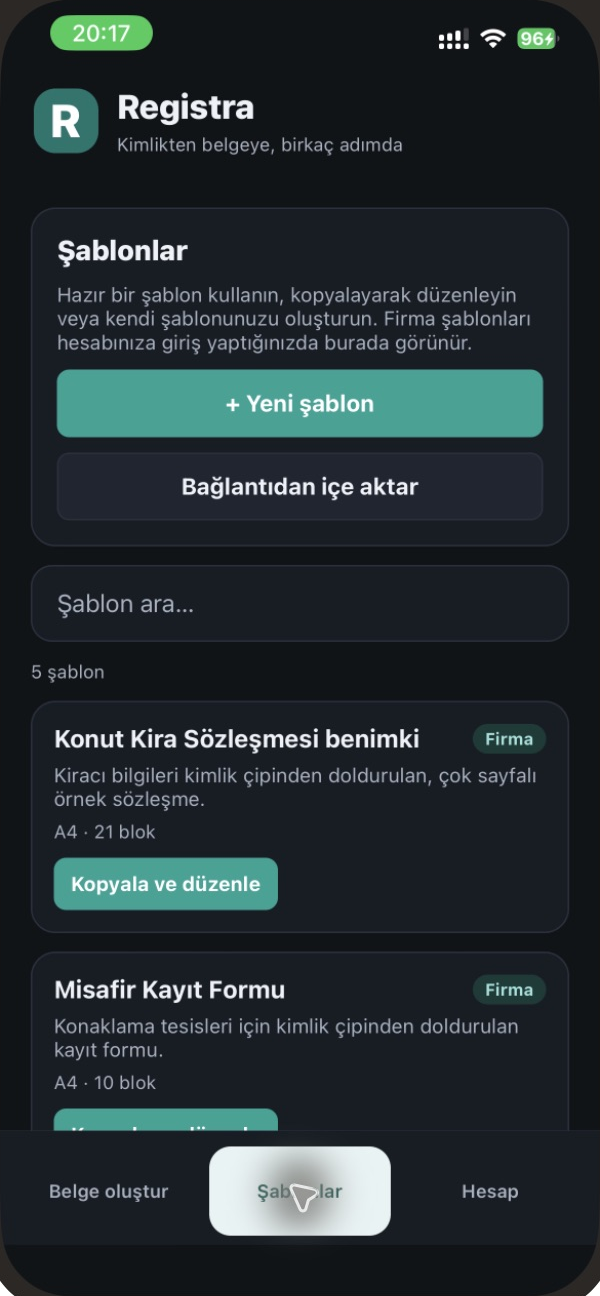
Mobile template list: Document layouts prepared by the company can be used in the field in the same format.
3. Edit and preview as needed
The mobile editor uses the same block layout as the web version. Blocks can be dragged and dropped to reorder them, moved between the header, body, and footer sections, and field variables can be added to headings or text.
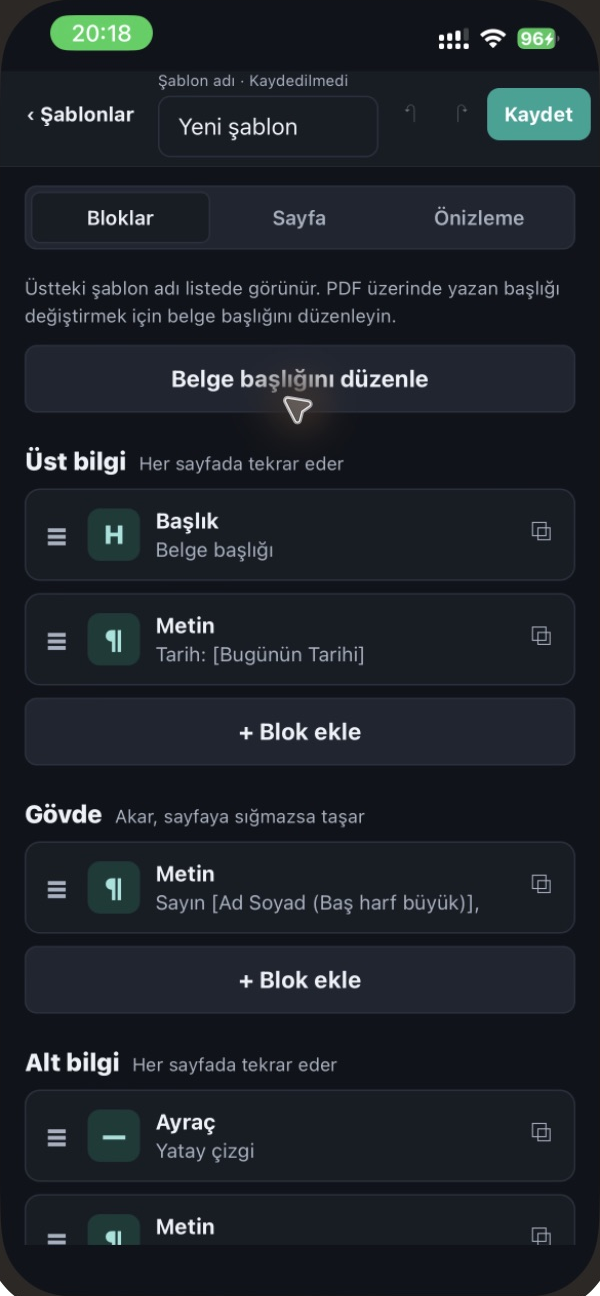
Block-based mobile editor. The document flow is divided into header, body, and footer sections according to the print layout.
4. Generate, share, or print the PDF
Once the selected template has been filled in with ID fields, the PDF is generated on the device. The user previews the document, checks for missing fields or fields not present on the card, and then uses the operating system’s sharing or printing tools. The signature line merely creates a space to be signed either in print or later; it is not a qualified electronic signature.
Permissions and company management
Registra uses four roles: company owner, administrator, template editor, and user. The company owner can manage templates, users, and company settings. The administrator can manage users and templates; the template editor can work on document layouts; and the user creates documents using the templates provided to them. This way, it is not necessary to grant the same administrative privileges to every team member.
These company roles are separate from Registra’s system-administrator authority. The Usage Permissions screen is visible only to the product owner’s system-administrator account. Company owners and administrators cannot approve applications, create new companies, or grant product-level access.
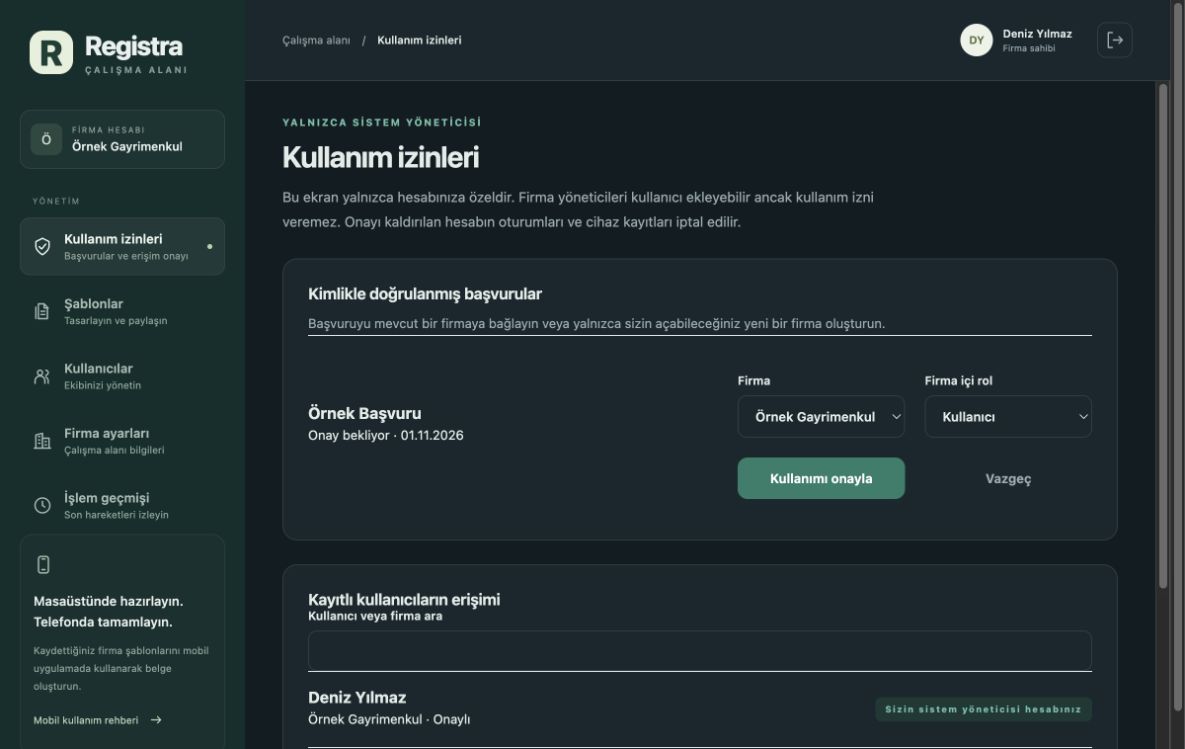
Usage Permissions shown with sample data. The system administrator can attach an application to an existing company or create a new company, while selecting the company role separately.
Company settings include organization information and the user’s registered phones for biometric device authentication. The transaction history helps authorized users track logins, user actions, and template operations. These records provide operational traceability; they do not, by themselves, constitute a legal signature or an official record-keeping system.
Four Real-World Use Cases
1. Real Estate: Preparing a lease agreement in the field
The real estate office prepares the Residential Lease Agreement template in the web panel with its own header and clauses. The field agent scans the tenant’s ID card with their phone; the first and last name, ID number, date of birth, and document fields are automatically populated in the appropriate places. Since the property address, rent amount, security deposit, and special conditions are not included on the ID card, they are added separately. After the user performs a final check, they share or print the PDF.
2. Accommodation: Standard Guest Registration Form
An accommodation business can use the same company template with different staff members. The Guest Registration Form is prepared without manually re-entering identification information; the staff member verifies the data and accommodation details. This scenario does not imply automatic integration with official reporting systems; Registra manages the document preparation process.
3. Multi-employee business: design at headquarters, use in the field
An authorized person creates the shared document template online and manages its versions. Branch or field teams refresh the latest templates from the same company account in the mobile app to produce consistent outputs. A new team member added by a company administrator verifies their identity and then waits for the product owner’s system-administrator approval. The company role becomes active only after that approval. Role separation distinguishes between those who need to edit templates and those who will only create documents.
4. Recurring office and field forms
The need to re-enter the same identification fields in customer intake, registration, delivery, or approval documents can be minimized. Registra does not eliminate human oversight: the generated document must be reviewed by the user, any missing business fields must be completed, and the decision to share the document must be made by an authorized person.
Privacy and Security Limits
Registra’s architecture keeps certain sensitive operations on the device, but it is not accurate to say that “no identity data goes to the server.” During card-based login, identity and chip credentials are verified on the server. For account matching, the Turkish ID number is not stored in plain text; the system stores an HMAC derived with a server-side secret together with a last-two-digit hint. The username, company, roles, device public keys, and transaction logs are part of the account system.
The phone’s biometric data is not transmitted to the server. The device-specific key is stored within the iOS Secure Enclave or Android Keystore in association with the biometric data; the server verifies the signature using the public key. The fingerprint used here is the biometric data that unlocks the phone locally; the fingerprint is not read from the ID chip. Registra does not read DG3 fingerprint data.
Access control is not limited to login. Before protected native operations such as card reading and PDF generation, the current mobile release checks the server-side usage permission over HTTPS. Revoking permission invalidates active sessions, biometric device registrations, and legacy passkeys. Protected document operations therefore do not promise offline operation.
PDF generation takes place on the phone. However, the app’s technical design does not automatically make it a certified public identity verification product, an official EKDS/KEC substitute, or an e-signature solution. Organizations’ data responsibilities, retention policies, access permissions, and obligations under the KVKK must be evaluated separately within their own usage contexts.
Current Development Status
The November 1, 2026, version of Registra was compiled for Android and iOS and installed on connected Android phones and iPhones. The web panel and server components are running in a live environment. During development validation, 105 server and 24 application tests were passed. However, the product acceptance workflow—in which a real user completes the entire process from start to finish using a physical card, Face ID/fingerprint, and web matching—has not yet been validated for all device types. Therefore, the current version should be considered a working product version that has been developed and installed on test devices; it does not claim to have an independent security certificate or an app store release.
Conclusion
Registra’s true value goes beyond a single NFC read. The product combines verified identity information, enterprise template management, and on-device PDF generation into a single workflow. The web panel establishes the document standard, while the mobile app handles physical contact with the ID card and on-site document generation; biometric device registration also shortens subsequent logins.
You can explore the live web panel at form.herenbas.com. For the technical background on this topic, you can also check out the articles on DS–CSCA chain verification, TLV data structures, and document data security.
Frequently Asked Questions
Does the web browser read the ID card directly?
No. MRZ and NFC reading is done on an Android or iOS phone. The web panel is for managing templates, teams, and companies.
Do I need to scan the card again every time I log in to the web portal?
No. If the phone has saved the biometric device key after the initial card verification, the web QR request can be authenticated with Face ID or a fingerprint. The card may need to be scanned again when registering a new device or a device that has been deleted.
Can anyone who verifies an identity chip create a company account?
No. A successful card verification by an unknown person creates only a usage application. Creating a company or attaching the person to an existing company requires the product owner’s separate system-administrator approval; a company owner or administrator cannot grant it.
Can Registra read a card and generate a PDF offline?
Not in the current Android and iOS release. Card and PDF operations check current usage permission from the native layer over HTTPS and therefore require an internet connection.
Does Registra read fingerprints stored on the ID chip?
No. Registra does not read DG3 fingerprint data. The fingerprint used for login is the phone’s own local biometric security mechanism.
Is the generated PDF prepared on the server?
No. The template and document data are combined on the phone; the PDF is generated on the device and shared or printed by the user.
Does the signature line count as an electronic signature?
No. The signature block in the template merely provides a space for signing the document; it does not generate a qualified electronic signature.
Standards and primary sources
Use the current editions and your organization’s approved policies when implementing production systems.
How would you rate this article?
Your feedback helps improve future articles.